Support

Knowledge Base  /  Frequently Asked Questions  /  Room Alert Manager

Maintaining Email Alerts After Microsoft 365 Basic Auth Deprecation

Microsoft 365 is in the process of disabling Basic Authentication for SMTP, a change designed to prevent non-human systems from sending email using basic credentials. This means devices and software configured to send email using a simple username and password may no longer be able to do so.

Your Room Alert notifications may be impacted if:

  • You have alerts configured locally in the device’s web interface or in Room Alert Manager.
    (Alerts configured in Room Alert Account are not impacted.)
  • You use hosted Microsoft 365 email.
  • You have Basic Authentication settings saved.

(If you use on-premise Microsoft Exchange Server or use another SMTP provider, this change does not impact you.)

If you are impacted, here’s three workarounds:

Option 1 — Direct Send (Internal Emails Only)

Use this option if you only send alert emails within your own organization (same email domain).

Steps to try Direct Send

  1. Open your Room Alert device web interface or Room Alert Manager.
  2. Navigate to your SMTP email settings.
  3. Disable SMTP Authentication (no username or password).
  4. Set the SMTP port to 25.
  5. Save your settings and send a test alert.

If your organization allows Direct Send, your alerts should deliver to internal recipients only.

Best Practice:
Add an SPF record to your domain to improve deliverability and reduce spam filtering.

Option 2 — SMTP Relay (External Emails Allowed)

Use this if you need to send alerts to recipients outside your domain.

SMTP Relay requires additional configuration in Microsoft 365, including a connector and a static public IP address.

Steps to set up SMTP Relay

  1. Confirm your network has a static public IP address.
  2. In Microsoft 365 / Exchange Online:
    • Create a Connector that allows your device to relay email.
  3. In your Room Alert device or Room Alert Manager:
    • Keep SMTP Authentication disabled
    • Use port 25
  4. Send a test alert to an external email address.

For Microsoft’s official guidance, search for: “Configure mail flow using connectors in Exchange Online.”

Best Practice:
Add an SPF record that includes your static IP to avoid spam filtering.

Option 3 — Use Room Alert Account (Recommended)

If your devices are connected to Room Alert Account, you can avoid SMTP configuration entirely. Room Alert Account includes its own secure mail server to send alert notifications on your behalf.

Steps to use Room Alert Account for alerts

  1. Log in to your Room Alert Account.
  2. Navigate to Alerts.
  3. Create or edit an alert for your device/sensor.
  4. Attach recipients and notification actions.

For full instructions, see this guide and video walkthrough: Create Alerts in RoomAlert.com

Benefits of this method

  • No SMTP credentials required
  • Centralized alert management across multiple devices
  • Easier to configure and maintain
Facebooktwitterredditpinterestlinkedinmail
Room Alert is Made in the USA, ships worldwide from our locations in the US and EU, and has been protecting facilities since 1988.

You may find Windows Command Prompt at the following path:

  • Windows 7 & 8
    Start--> All Programs--> Accessories--> Command Prompt
  • Windows 10
    Start--> All Apps--> Windows System--> Command Prompt

To run Windows Command Prompt as an administrator:
  • Windows 7 & 8
    Right-click on Command Prompt and select Run as administrator.
  • Windows 10
    Right-click on Command Prompt, select More and then select Run as administrator.

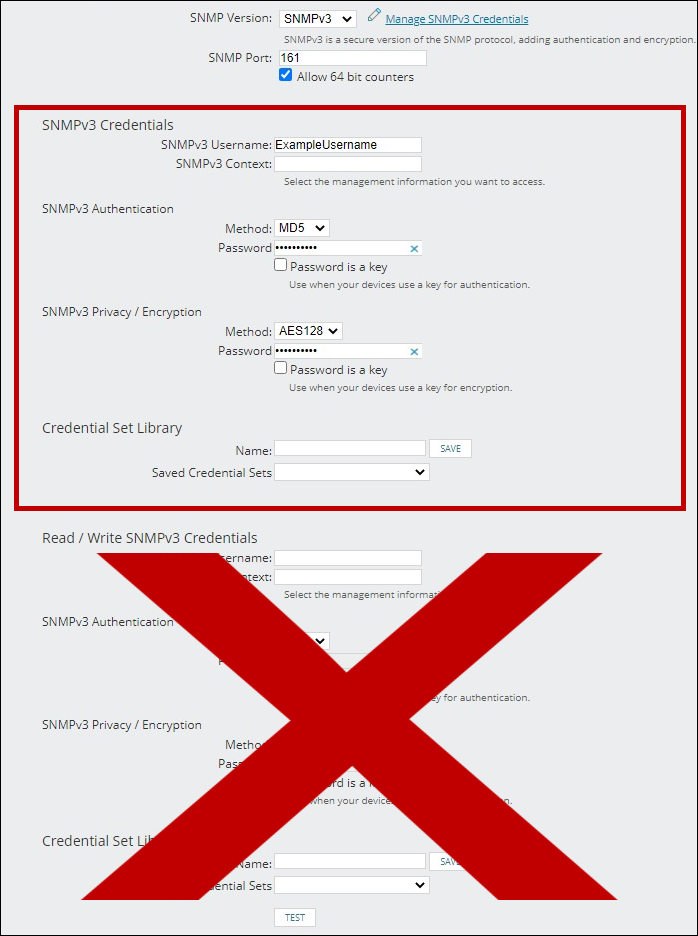
Example Polling Method Properties saved in Orion SolarWinds:

If you are using this client, you should configure the general SNMPv3 Credentials, but leave the Read / Write SNMPv3 Credentials section blank.

Room Alert Link- Supported Firmware Updates


Current S modelsCurrent E models
Room Alert 32SRoom Alert 32E
Room Alert 12SRoom Alert 12E
Room Alert 3SRoom Alert 4E
Room Alert 3E

Compatible 'S', 'E' and 'W' Monitors


S modelsE & W models
Room Alert 32SRoom Alert 32E
Room Alert 12SRoom Alert 12E
Room Alert 3SRoom Alert 4E
Room Alert 3E
Room Alert 3W

Current Compatible Models

Model
Room Alert MAX
Room Alert 32S
Room Alert 12S
Room Alert 3S
Room Alert 32E/W
Room Alert 12E
Room Alert 4E
Room Alert 3E
Room Alert 3 Wi-Fi