
See also: User Guide & Reference Manuals.
Search all Room Alert Monitor How-To Guides…
…or Search all How-To Guides instead.
Browse all Room Alert Monitor How-To Guides:
SNMP Table Structure Room Alert MAX exposes sensor data through three SNMP tables: To interpret a reading, you may need to move across more than one table. Sensor Data OIDs Each OID consists of: Each table has its own base OID and its own index format. Root OID The Room Alert MAX Base Station MIB […]
Microsoft 365 is in the process of disabling Basic Authentication for SMTP, a change designed to prevent non-human systems from sending email using basic credentials. This means devices and software configured to send email using a simple username and password may no longer be able to do so. Your Room Alert notifications may be impacted […]
Room Alert MAX sensors operate on the 2.4 GHz frequency band, which is shared with Wi-Fi and other wireless technologies. While this frequency is excellent for short-range communication, it can be weakened by certain building materials. The strength and range of the signal depend on distance and what’s between the sensor and the Base Station. […]
You can configure your Room Alert MAX Base Station to communicate using BACnet, enabling seamless integration with your existing Building Management System (BMS) or Building Automation System (BAS). Follow these instructions to configure BACnet on your Base Station:
Room Alert MAX supports the following types of Wi-Fi networks: Follow these instructions to connect your Base Station to Wi-Fi:
Firmware updates can be applied to MAX Base Stations through the device’s local web interface. (Currently, Room Alert Discovery utility can find MAX devices, but not update them. Room Alert Link and Room Alert Manager do not have support for MAX devices.) Before you begin: You may download the latest MAX firmware file from your […]
Typically, wireless sensors and Wired Sensor Adapters send their data to the MAX Base Station multiple times per minute. If your Room Alert MAX Base Station has not received any new data from a paired wireless sensor or Wired Sensor Adapter in more than 2 minutes, you’ll see a timestamp in the Readings page, like […]
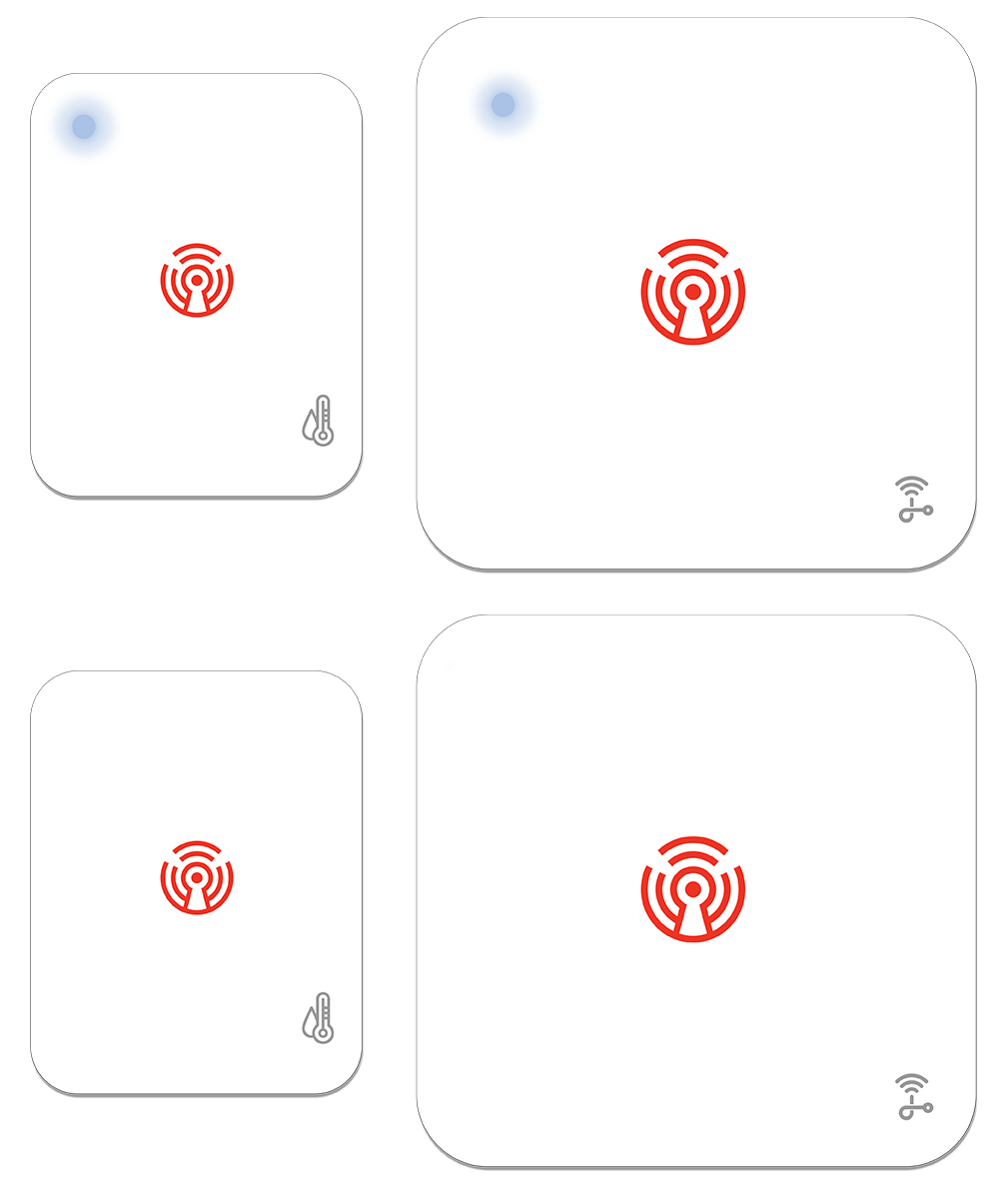
Pairing Follow these steps to pair a wireless sensor or Wired Sensor Adapter to your MAX Base Station: You’ll know its in Pairing Mode when you see . Troubleshooting If you’re having trouble pairing a sensor or Wired Sensor Adapter, it’s possible that the device is stuck in bonded mode. To check: You can see […]
For instructions to sign into the password-protected pages of your Room Alert Monitor’s web interface, select your Room Alert model from the tabs below. For information about configuring your device’s credentials, please see How To Set (Or Reset) A Password On A Room Alert Monitor.
AVTECH prioritizes security when designing our products, which you can read about here: Advanced Security, Data Encryption and More With the New Room Alert 32S. Along with the security measures built into our Room Alert ‘S’ models, there are additional settings that you may apply in order to maximize security. Set a password on your Room Alert Monitor […]
We'd love to talk with you about your monitoring needs. Contact one of our Product Specialists for a free consultation.


You may find Windows Command Prompt at the following path:
To run Windows Command Prompt as an administrator:
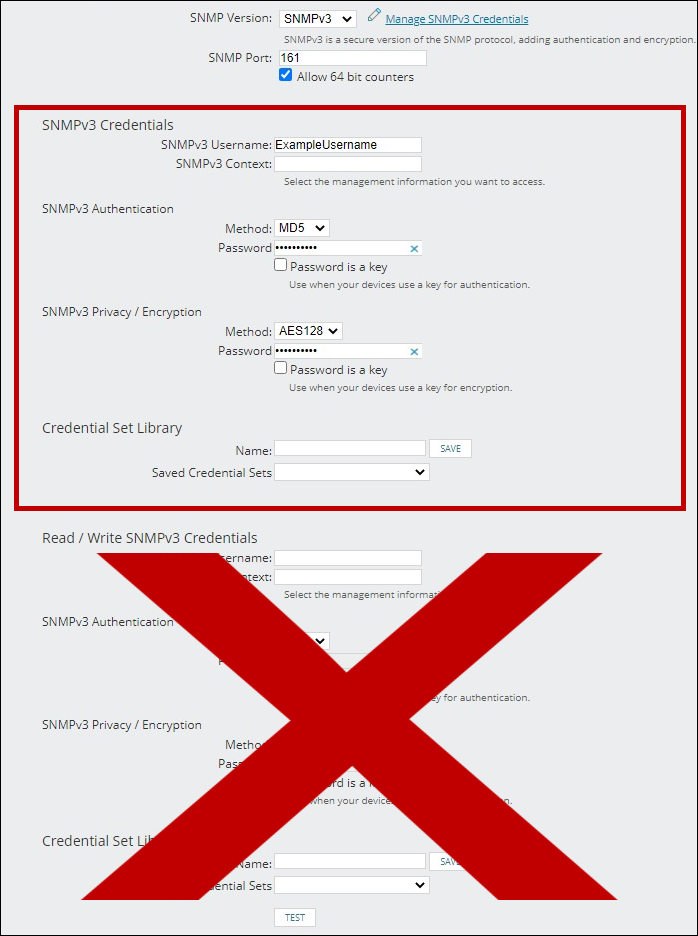
If you are using this client, you should configure the general SNMPv3 Credentials, but leave the Read / Write SNMPv3 Credentials section blank.

| Current S models | Current E models |
|---|---|
| Room Alert 32S | Room Alert 32E |
| Room Alert 12S | Room Alert 12E |
| Room Alert 3S | Room Alert 4E |
| Room Alert 3E | |
| S models | E & W models |
|---|---|
| Room Alert 32S | Room Alert 32E |
| Room Alert 12S | Room Alert 12E |
| Room Alert 3S | Room Alert 4E |
| Room Alert 3E | |
| Room Alert 3W |
| Model |
|---|
| Room Alert MAX |
| Room Alert 32S |
| Room Alert 12S |
| Room Alert 3S |
| Room Alert 32E/W |
| Room Alert 12E |
| Room Alert 4E |
| Room Alert 3E |
| Room Alert 3 Wi-Fi |