
Knowledge Base
Results for “room alert manager”.
Enabling Your Light Tower In Room Alert Before you can set up Toggle Light Tower actions in Device ManageR, you must enable the Light Tower in your Room Alert. This FAQ shows you how: How To Enable Your External Light Tower Or Relay Switch In Your Room Alert Monitor. Your Light Tower will not appear in […]
You may monitor Network Devices on your network using the Monitor Network Devices feature of Device ManageR. Monitor Network Devices attempts to connect to a device on the network and check if a service is running on a specific port. – If the service is running, the connection will be established and the Network Device will register […]
The Linux Shutdown action is used to shut down target Linux systems; this action is extremely beneficial for powering down a system or group of systems when environment conditions, such as high temperatures, power loss, flooding, etc., could potentially lead to catastrophic system damage. Systems can be shutdown simultaneously, sequentially, or according to a defined […]
Device ManageR automatically logs current sensor values of all found devices to a database. Using the logged sensor values, Device ManageR allows users to view real-time graphs of sensor data over multiple date and time ranges. The graphs can serve as a useful tool in identifying trends in power or cooling, as well as potential […]
You may discover your (not “S” models) using AVTECH’s Device ManageR software or AVTECH’s Device Discovery utility. Device ManageR can additionally discover Axis cameras on your network. You may view a video demonstration of discovering your AVTECH devices with Device ManageR below: Device ManageR scans your network in the following ways: Automatic discovery with a […]
Using the new version of the Room Alert Monitor web interface? Please click here for the appropriate FAQ. By default, your Room Alert Monitor obtains an IP address automatically using DHCP. You may set a static IP address, if you wish, using one of the following methods: – Room Alert Monitor’s built-in web interface – AVTECH’s […]
To create an alert in Device ManageR, follow these steps: 1. Open Device ManageR in your web browser. You may open it by entering ‘localhost:8080’ or ‘<IP address of Device ManageR host system>:8080’ in your browser’s address bar. 2. Select Alerts/Tasks in the navigation bar to the left. 3. In the Alerts/Tasks menu, select Alerts. […]
By default, Device ManageR does not require user accounts with user names and passwords. However, they are an option if you would like to add security in terms of who can reconfigure the program and who can see what data. You may view a video demonstration of configuring user accounts below: Types Of User Accounts […]
Before You Begin Before you configure your dial-out modem action, please do the following: – Download and install the Dial Out Plugin Bundle. If you’ve purchased this plugin bundle, it is available for download from your account at RoomAlert.com. – Configure and test your dial-out modem in Device ManageR. This FAQ shows you how: How To […]
To create a GSM modem action in Device ManageR, you must have the Dial Out Plugin Bundle installed. If your organization has a service plan at the Professional level or higher, you may download it from your account at RoomAlert.com. To set up a GSM modem action in Device ManageR, follow these steps: 1. Open Device […]
We'd love to talk with you about your monitoring needs. Contact one of our Product Specialists for a free consultation.


You may find Windows Command Prompt at the following path:
To run Windows Command Prompt as an administrator:
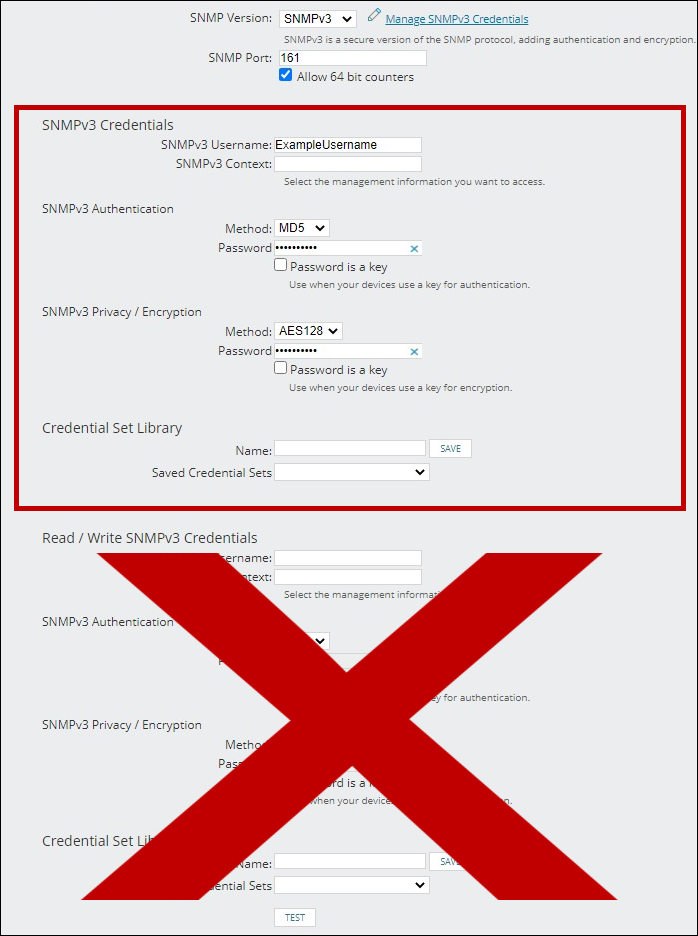
If you are using this client, you should configure the general SNMPv3 Credentials, but leave the Read / Write SNMPv3 Credentials section blank.

| Current S models | Current E models |
|---|---|
| Room Alert 32S | Room Alert 32E |
| Room Alert 12S | Room Alert 12E |
| Room Alert 3S | Room Alert 4E |
| Room Alert 3E | |
| S models | E & W models |
|---|---|
| Room Alert 32S | Room Alert 32E |
| Room Alert 12S | Room Alert 12E |
| Room Alert 3S | Room Alert 4E |
| Room Alert 3E | |
| Room Alert 3W |
| Model |
|---|
| Room Alert MAX |
| Room Alert 32S |
| Room Alert 12S |
| Room Alert 3S |
| Room Alert 32E/W |
| Room Alert 12E |
| Room Alert 4E |
| Room Alert 3E |
| Room Alert 3 Wi-Fi |