
See also: User Guide & Reference Manuals.
Search all Room Alert Monitor How-To Guides…
…or Search all How-To Guides instead.
Browse all Room Alert Monitor How-To Guides:
1. First open your Room Alert Monitor’s web interface through one of Room Alert’s discovery utilities. You may also type the IP address of the unit directly into the address bar of your web browser. 2. Next, navigate to the device’s Settings –> Sensors page. 3. Scroll to your external digital sensor(s), the total number of which will vary depending on […]
You may set a password for your Room Alert 3 Wi-Fi to prevent unauthorized users from accessing the unit’s local web interface. Setting a Password 1. Open your Room Alert 3 Wi-Fi’s web interface. You may open the interface using Device Discovery, Device ManageR, or your account at RoomAlert.com. You may also type the IP address of the […]
If all other methods for discovering your Room Alert Monitor have failed, one last step to try is using a packet analyzer program such as Wireshark. Typically, you’d take this step after you’ve attempted to discover the Room Alert by connecting it directly to a computer, but you can also use Wireshark while your Room Alert […]
If you do not have DHCP enabled on your network, you must connect your Room Alert directly to a computer to discover it initially. From there, you may set a static IP on the unit so that it may be seen by your regular network. Please follow the instructions below to discover your Room Alert […]
You may find the IP address of your Room Alert MAX, 32S, 12S, 3S, 32E/W, 12E, 4E, 3E or 3W in your account at RoomAlert.com. To find your unit’s IP address in your Room Alert Account, follow these steps: 1. Log in to your account at RoomAlert.com. Don’t have an account? Follow the instructions in […]
You may need to connect your Room Alert Monitor directly to your Windows computer for troubleshooting purposes if you are experiencing one of the following issues: Your network is not DCHP-enabled, and you need to discover and then set a static IP on your Room Alert Monitor. You are having difficulty discovering your Room Alert […]
You may need to connect your Room Alert Monitor directly to your Windows computer for troubleshooting purposes if you are experiencing one of the following issues: Your network is not DCHP-enabled, and you need to discover and then set a static IP on your Room Alert Monitor. You are having difficulty discovering your Room Alert […]
You may use Alarm Profiles in your Room Alert Monitor to automatically turn on and off your Light Tower (LEDs and audio) or Relays on boot or in response to alarm conditions. Setting Up Profiles In Your Room Alert’s Web Interface To set up profiles in your Room Alert’s web interface, please follow these steps:
Before you can configure your external Light Tower or Relay Switch to respond to alert conditions, you must enable it in your Room Alert Monitor. Your external Light Tower or Relay Switch will not appear in the Room Alert web interface, your RoomAlert.com account or the Room Alert Manager software unless you enable it first. […]
There are different ways to calculate dew point. More complex formulas are more precise, but require more processing power. Simpler dew point formulas require less processing power and time, but are less granular. Monitoring Dew Point in the Room Alert Monitor web interface The Room Alert Monitor uses a simpler calculation to monitor dew point. This […]
We'd love to talk with you about your monitoring needs. Contact one of our Product Specialists for a free consultation.


You may find Windows Command Prompt at the following path:
To run Windows Command Prompt as an administrator:
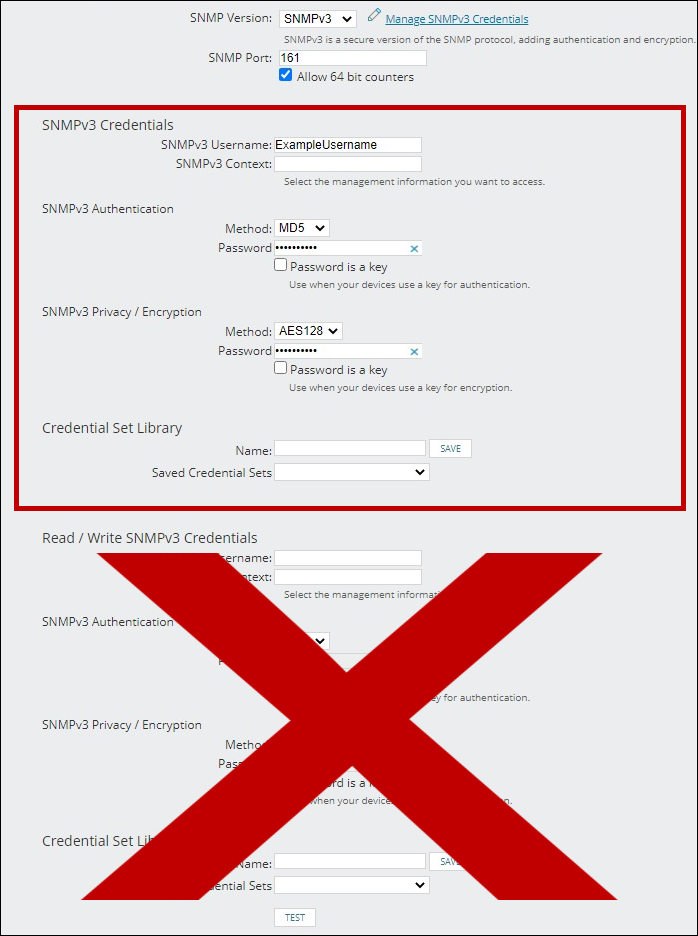
If you are using this client, you should configure the general SNMPv3 Credentials, but leave the Read / Write SNMPv3 Credentials section blank.

| Current S models | Current E models |
|---|---|
| Room Alert 32S | Room Alert 32E |
| Room Alert 12S | Room Alert 12E |
| Room Alert 3S | Room Alert 4E |
| Room Alert 3E | |
| S models | E & W models |
|---|---|
| Room Alert 32S | Room Alert 32E |
| Room Alert 12S | Room Alert 12E |
| Room Alert 3S | Room Alert 4E |
| Room Alert 3E | |
| Room Alert 3W |
| Model |
|---|
| Room Alert MAX |
| Room Alert 32S |
| Room Alert 12S |
| Room Alert 3S |
| Room Alert 32E/W |
| Room Alert 12E |
| Room Alert 4E |
| Room Alert 3E |
| Room Alert 3 Wi-Fi |